

 Definitions Procedures How Sample Ranges Work
This option allows Quality Control data from an interfaced instrument using Sample IDs to automatically transmit for processing to the QC Result files.
If transmitting QC results from an interfaced instrument using a Sample ID, the Sample ID range must be defined in the option with the corresponding known in order for the CyberLAB system to process the QC result correctly.
___________________________________________
Caution: 
To leave a screen in the CyberLAB system, always click the Exit button at the upper-right corner of the screen.
Do not use the (red or black) X button at the top-right corner of the screen. This action can affect operation of the application.
____________________________________________
Enter a maximum of 3 digits.
This becomes the first three digits of the Sample IDs, which are transmitted from the instrument.
Enter a maximum of 6 digits in each field.
Enter the sample ranges to be used for each Known to be defined, making sure not to duplicate sample ranges. This is the Sample ID suffix.
Enter X1 - X8 (where X = any letter).
The entry made in this field must also be defined in the QC Dictionary Maintenance screen's Known field for the tests transmitting from the interfaced instrument.
Note to Keyboard Users: To navigate around a screen or scroll within a selection list, use the Tab key to move down and the Tab and Shift keys to move up. Press the Enter key to select the data.
For a shortcut key, also known as a hot key , press the Alt key and the key corresponding to the letter that is underlined, for example, Alt + O for OK.
Perform these steps:
Enter a maximum of three digits within the Sample ID Prefix text box.
Enter a maximum of six digits within the From text box and again within the Thru text box.
Enter the code for the Known within the Known text box.
Repeat steps 3, 4 and 5 for all Knowns for which you want to establish sample ranges.
Click the OK button to accept the sample ranges entered and return to the Quality Control Maintenance Options screen. A confirmation window does not appear.
Click the Cancel button to return to the Select Options screen.
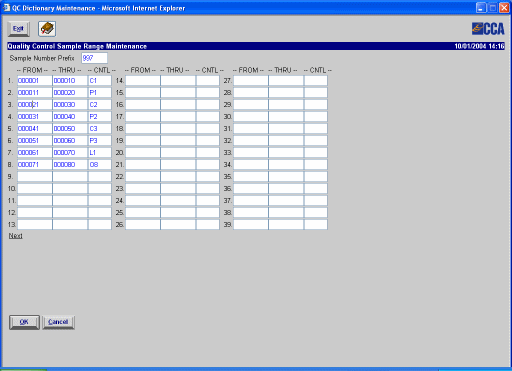
As shown in the above illustration, the Sample ID range of 997000001 - 997000010 has been assigned to Known C1, and the Sample ID range of 997000011 - 997000020 has been assigned to Known P1.
Let's say the instrument sends across a Sample ID of 997000008, which is the C1 known, to the CyberLAB system. The sample's results automatically enter the QC results files (unless editing the date for this instrument) and are then available for modification or statistical reporting. The Sample ID cannot be entered as patients in the CyberLAB system since they are defined as QC samples.