

Use the Antibiotic Subheaders screen in Interim and Microbiology Cumulative reports to set up the format for antibiotic subheaders.
____________________________________________
Caution: 
To leave a screen in the CyberLAB system, always click the Exit button at the upper-right corner of the screen.
Do not use the (red or black) X button at the top-right corner of the screen. This action can affect operation of the application.
____________________________________________
Note to Keyboard Users: To navigate around a screen or scroll within a selection list, use the Tab key to move down and the Tab and Shift keys to move up. Press the Enter key to select the data.
For a shortcut key, also known as a hot key, press the Alt key and the key corresponding to the letter that is underlined, for example, Alt + O for OK.
Perform these steps:
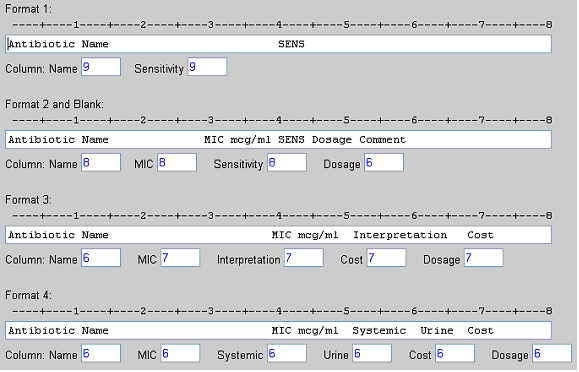
Enter and maintain the column headings that you want to appear on the report for each sensitivity format pattern.
The location of the column headings correspond to the data that displays under them.
Note: If a field is blank, it does not print.
Suppress Component: To suppress a component, enter zero in the column field for that component.
Repeat Step No. 1 for each sensitivity format.
Click the Accept button to accept into the CyberLAB system all the entries that you have made. The system returns to the Report Format Options screen.
Click the Cancel button to not accept the entries you have made. The system returns to the Report Format Options screen.
Click the Previous button to return to the Alpha Result Conversion screen.
